Keeping your home address up to date on Google Maps ensures you receive accurate directions and location-based suggestions across your devices. Whether you have moved to a new neighbourhood or simply want to correct an old address, updating your details requires only a few moments. Knowing how to change your home address on Google Maps can help you keep navigation and commute estimates accurate across Google services.
Google Maps Home Address Update Significance
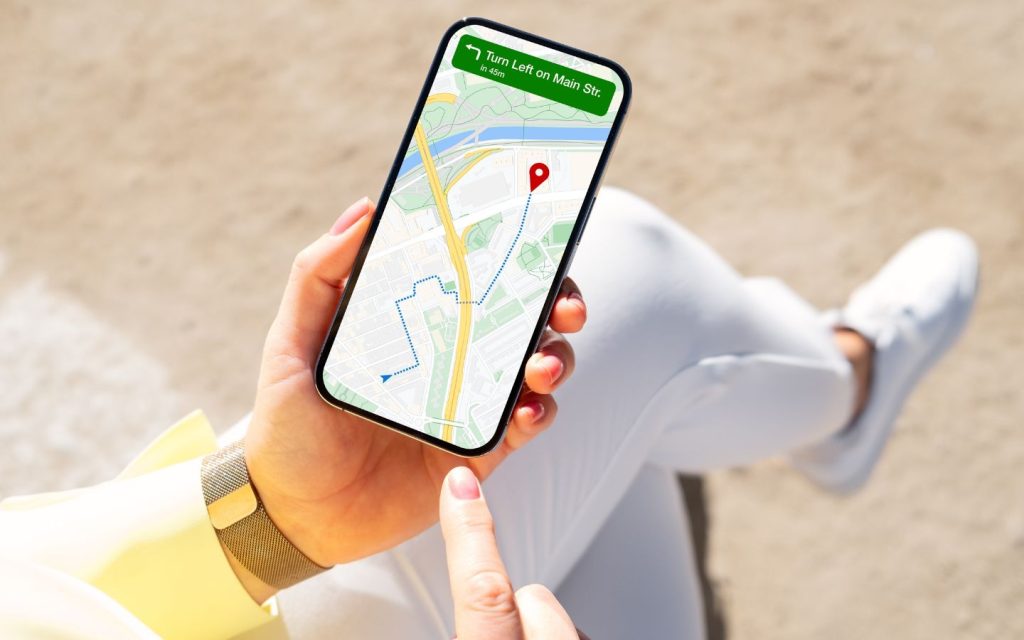
An outdated address can lead to incorrect navigation routes, inaccurate commute information and irrelevant local search results. Updating your home location allows Google Maps to:
- Provide accurate directions to and from home
- Improve commute estimates
- Show more relevant nearby places and services
- Streamline searches without repeatedly entering your address
Google also synchronises the updated address across devices connected to the same account, facilitating a smooth navigation experience.
How to Change Your Home Address on Mobile
You can update your address using Google Maps on Android, iPhone or iPad.
Step 1: Open Google Maps
Launch the Google Maps app on your mobile device.
Step 2: Open the Saved Location
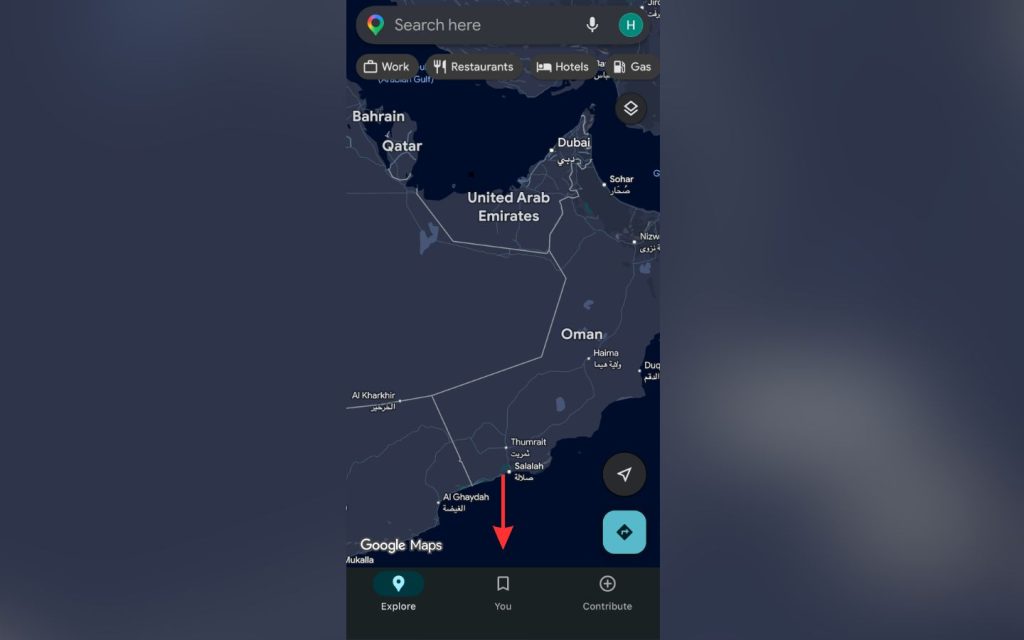
Tap ‘Saved’ from the bottom navigation menu.
Step 3: Access Labelled Locations
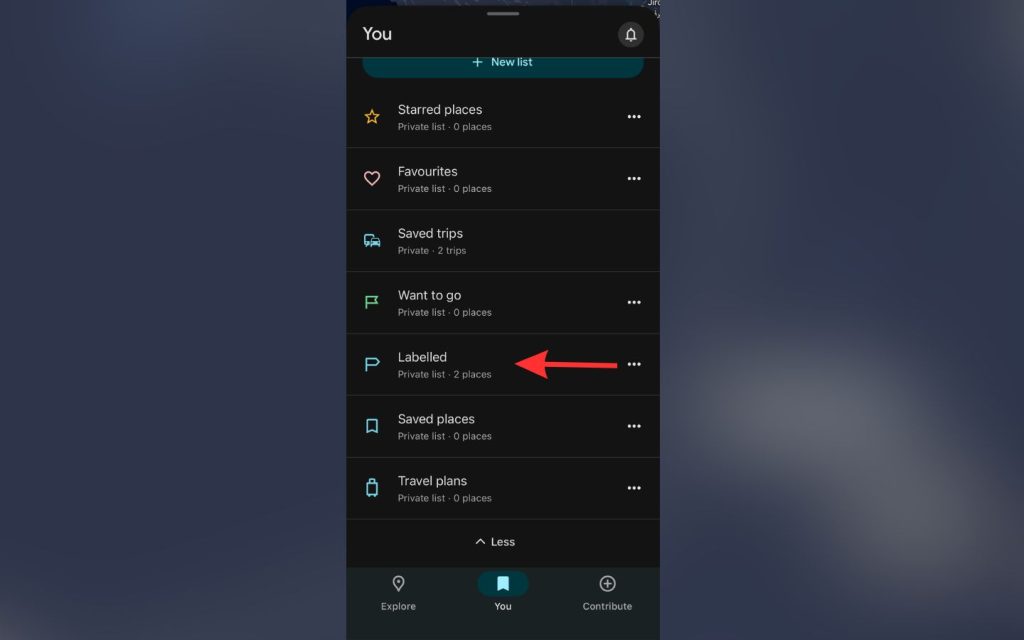
Scroll down and select ‘Labelled’ under the ‘Your Lists’ section.

Step 4: Select Home
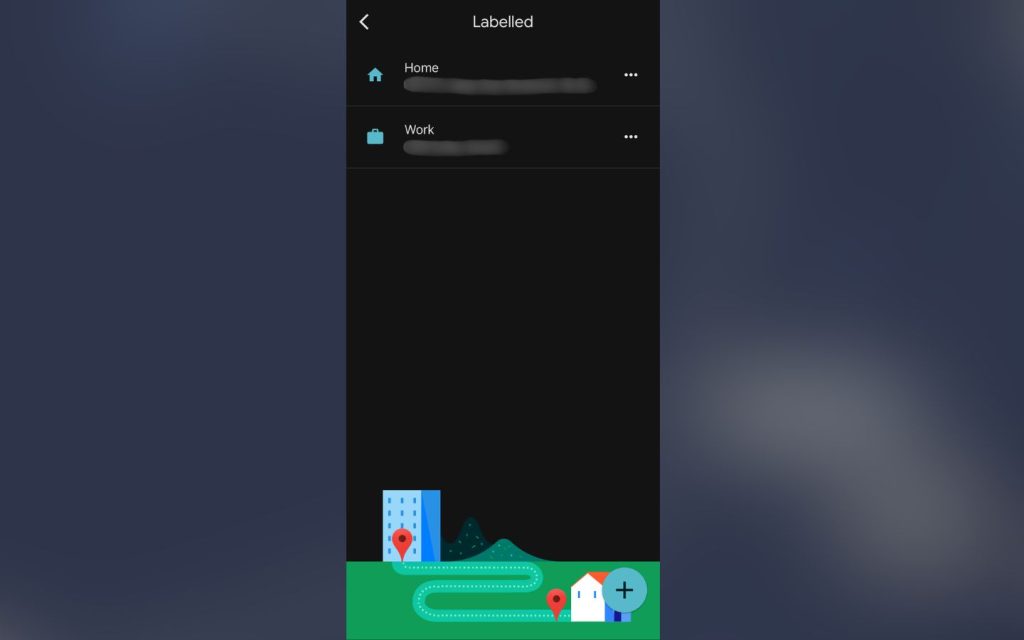
Tap the three-dot menu option next to ‘Home’ label. If you wish to update your work address instead, select ‘Work.’
Step 5: Enter Your New Address
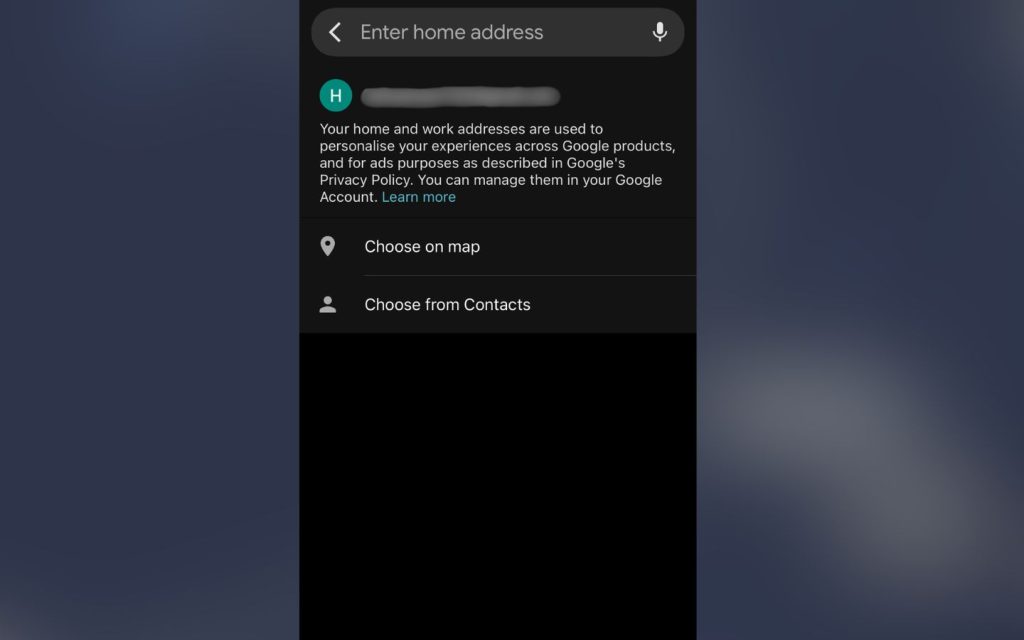
You can either:
- Type your new home address manually
- Choose the location directly on the map by moving the pin
Step 6: Save the Changes
Tap ‘Save’ to confirm the update.
Your new home address will now be used whenever you request directions home through Google Maps.
How to Change Your Home Address on Desktop
You can also edit your home address on Google Maps through the desktop version of Google Maps.
Step 1: Open Google Maps
Visit the Google Maps website and sign in to your Google account.
Step 2: Open the Menu
Click the hamburger menu icon in the top-left corner.
Step 3: Open Saved Locations
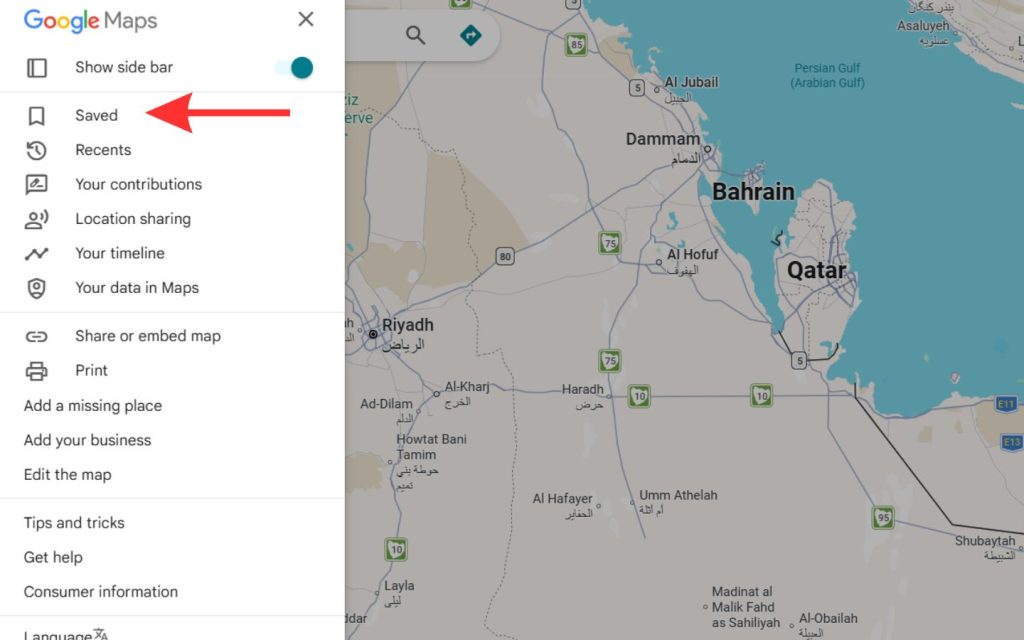
Select ‘Saved’ from the side menu.
Step 4: Remove the Existing Address
Under the ‘Labelled’ tab, click the three-dot menu beside ‘Home’ and select ‘Edit home address’ or ‘Remove address’.
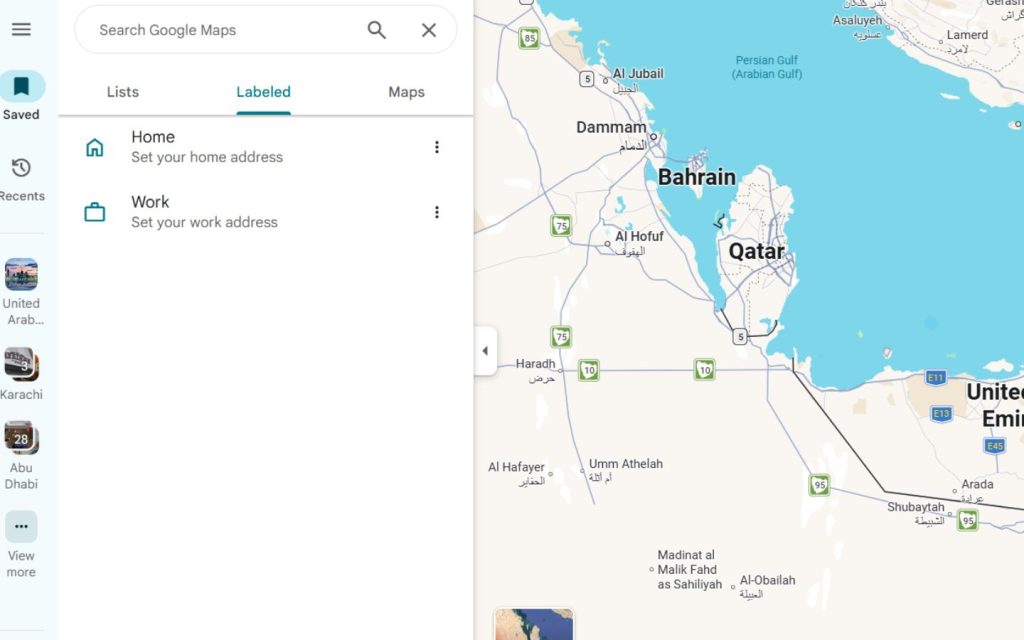
Step 5: Add Your New Address
Click the three-dot menu again and choose ‘Set Your Home Address.’
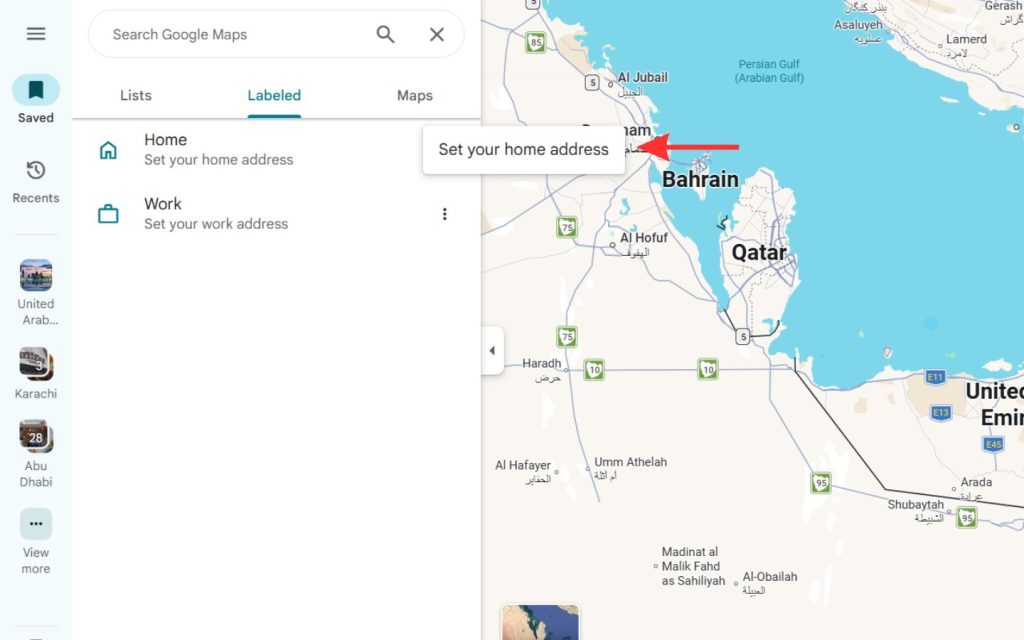
Step 6: Save the Changes
Enter the updated address and click ‘Save.’
The updated location will automatically synchronise across devices linked to your account.
Managing Other Addresses in Your Google Account
In addition to home and work addresses, Google allows users to manage:
- Other saved addresses
- Billing addresses
- Legal addresses
- Profile addresses linked to Google services
These can be managed through your Google Account settings under ‘Personal Info’.
FAQs
Why is my home address incorrect on Google Maps?
This usually happens when an old address is still saved in your Google Account, or the update has not fully synced across devices.
Can I have multiple home addresses on Google Maps?
No, Google Maps allows only one home and one work address per account.
How long does Google Maps take to update an address?
Updates are usually immediate but may take a short time to synchronise across all devices and services.
Updating your home address on Google Maps is a simple but important step in maintaining accurate navigation and personalised location services. Whether updated on mobile or desktop, the changes quickly reflect across your Google account.
In practice, this kind of accuracy in location settings often goes hand-in-hand with wider planning and decision-making. This becomes especially relevant when exploring properties for sale in the UAE, where a clear geographical context can make comparisons and choices far more informed.
Keep reading dubizzle’s property blog to stay updated about the UAE’s property market trends and latest developments.